 WinSwift Studio
iPhone simulator
Six models: iPhone 16 Pro, 16 Pro Max, 16, 16 Plus, 16e and SE. Mouse touch, gestures, light and dark mode, GPS location, language and permissions.
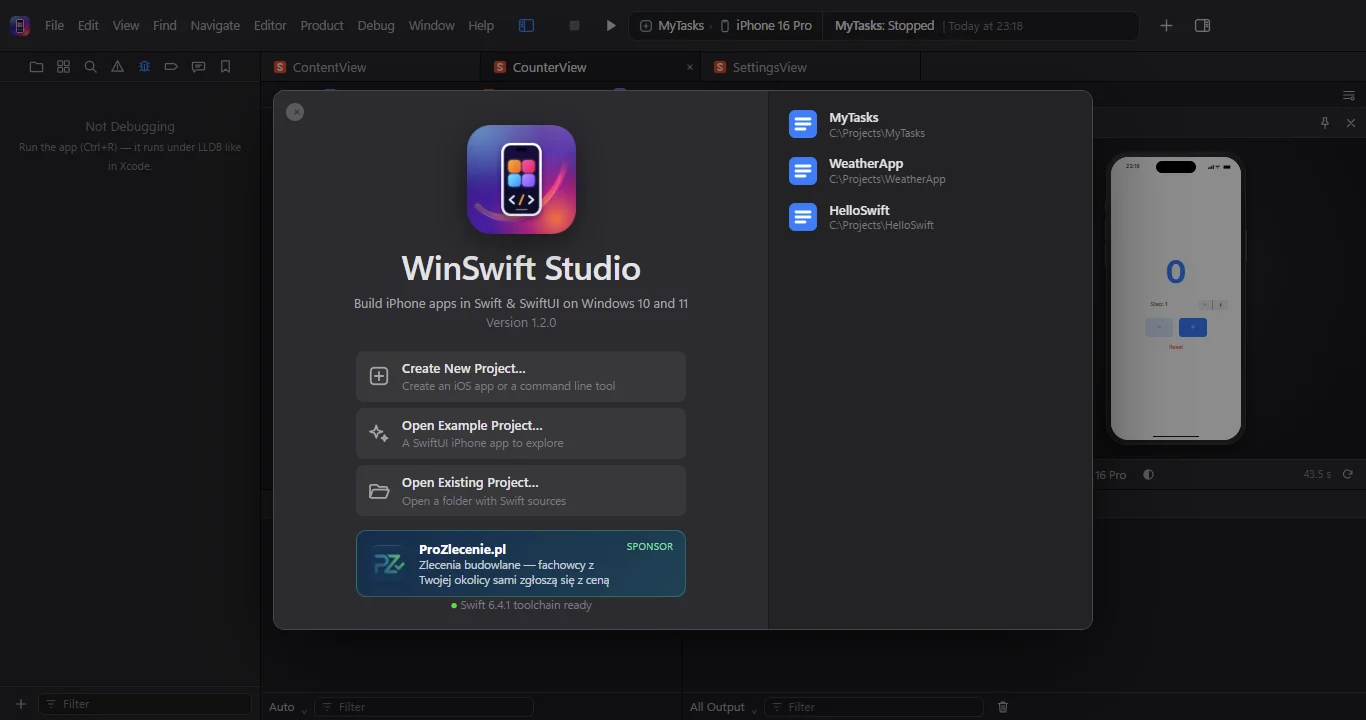
WinSwift Studio is a free, Xcode-style IDE for Windows 10 and 11. Write Swift and SwiftUI, run your app in an iPhone simulator, see live previews and debug — no Mac required.
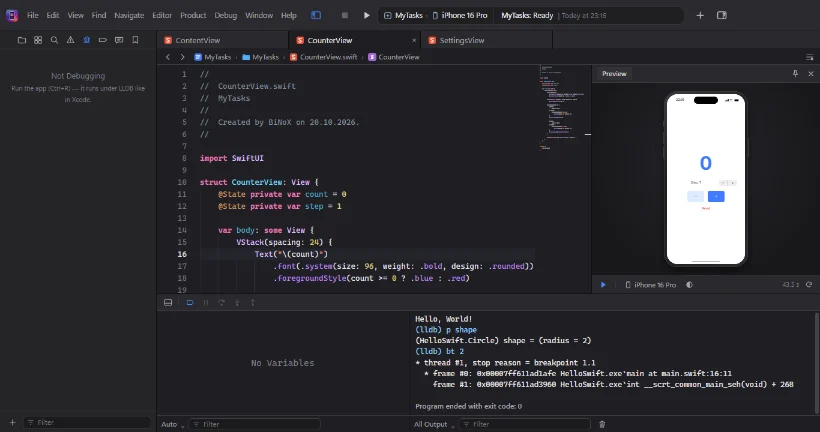
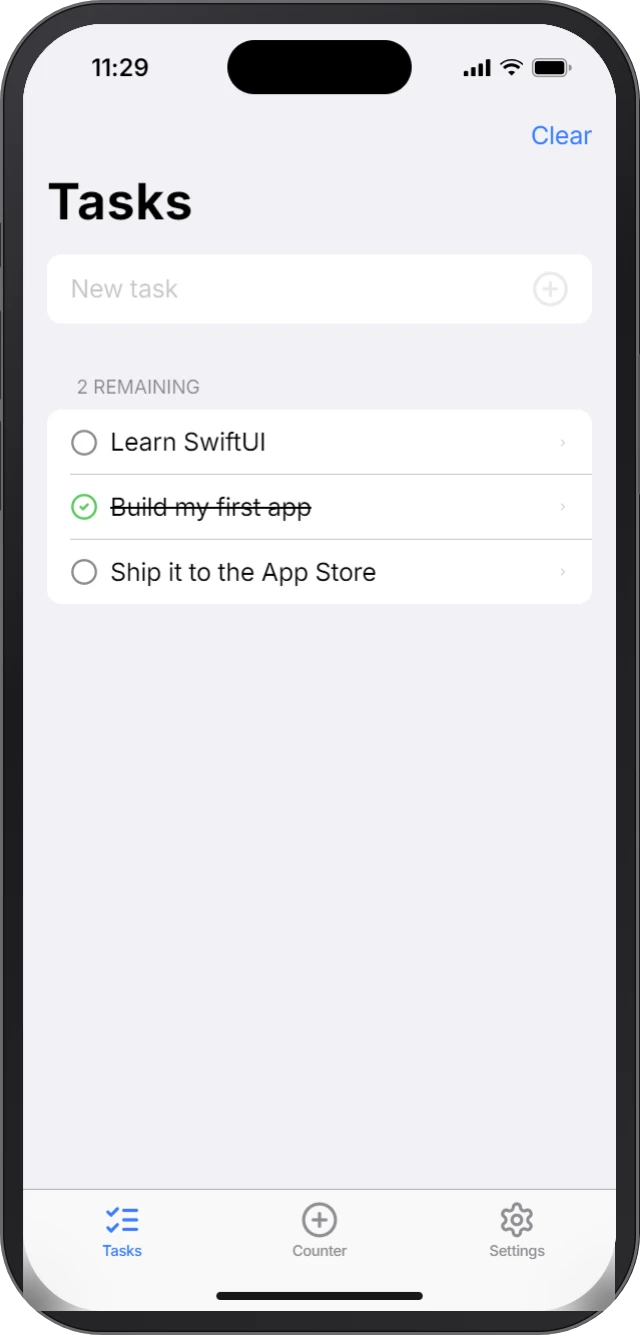
iOS development on Windows without the hassle: an editor, the Swift compiler, an iPhone simulator, SwiftUI previews and a debugger in one app that looks and works like Xcode.
Six models: iPhone 16 Pro, 16 Pro Max, 16, 16 Plus, 16e and SE. Mouse touch, gestures, light and dark mode, GPS location, language and permissions.
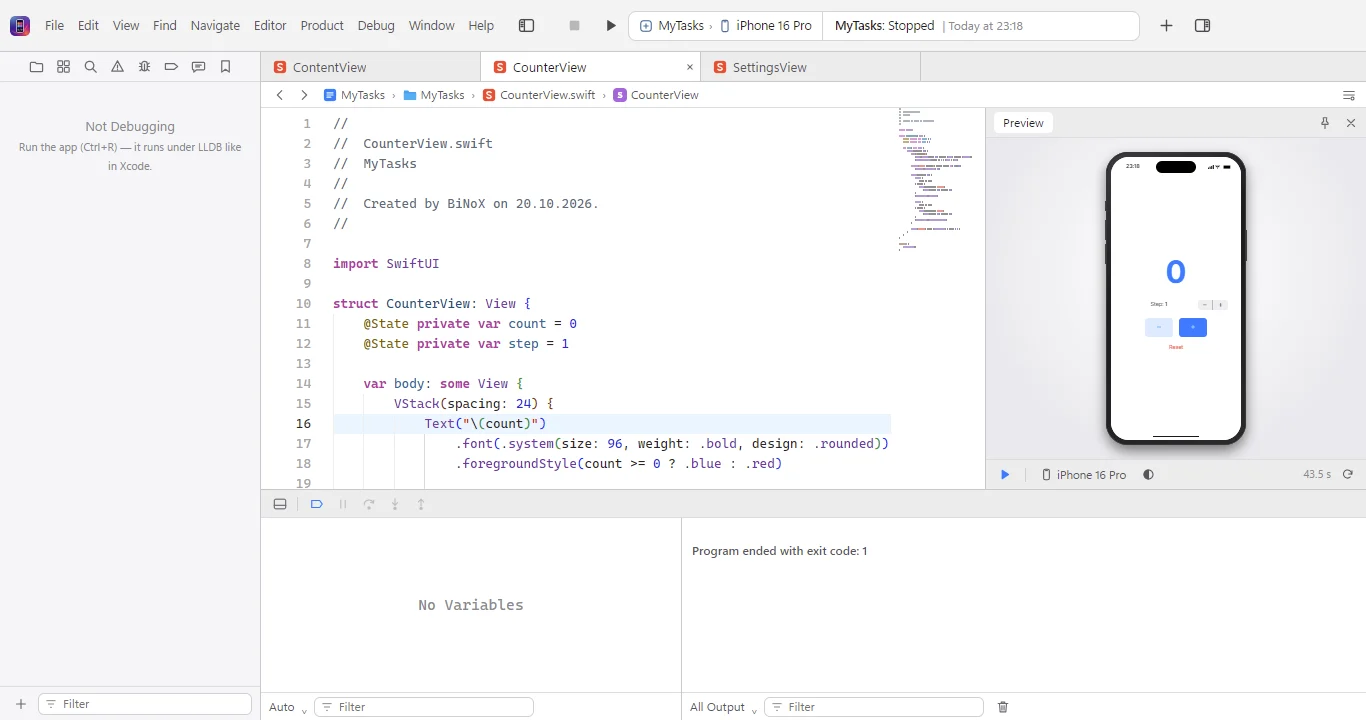
The Canvas renders #Preview next to your code and refreshes as you type — just like SwiftUI previews in Xcode.
Click a line number to set a breakpoint, step with F6/F7/F8, inspect variables, the call stack and the (lldb) console with po.
SourceKit-LSP: code completion, Quick Help, Rename, Code Actions and one-click fix-its, with errors highlighted while you type.
An open implementation of SwiftUI for Windows runs your code in the simulator without a Mac. Supported, among others:
NavigationStack, List, Form, TabView, ScrollView, grids and stacks@State, @Binding, @Observable, @AppStorage, @EnvironmentNavigators, inspectors, a Library with SF Symbols, Edit Scheme, Open Quickly and familiar shortcuts (Cmd becomes Ctrl).
An installer without admin rights, and the Swift toolchain is one click away with Install Swift… — the app checks for updates on its own.
Light and dark appearance, editor themes, fonts and custom key bindings — all in Settings (Ctrl+,).
Real screenshots of WinSwift Studio on Windows 11 — no retouching.
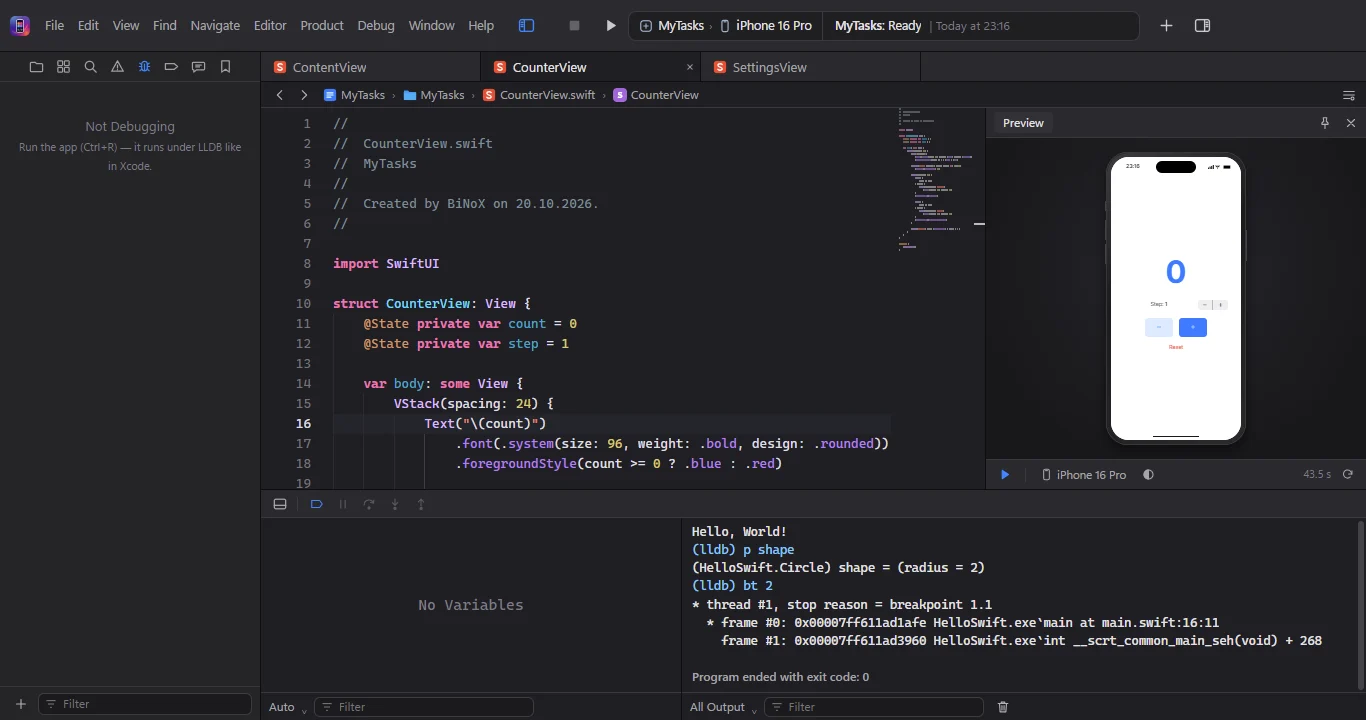
#Preview side by side — like Xcode.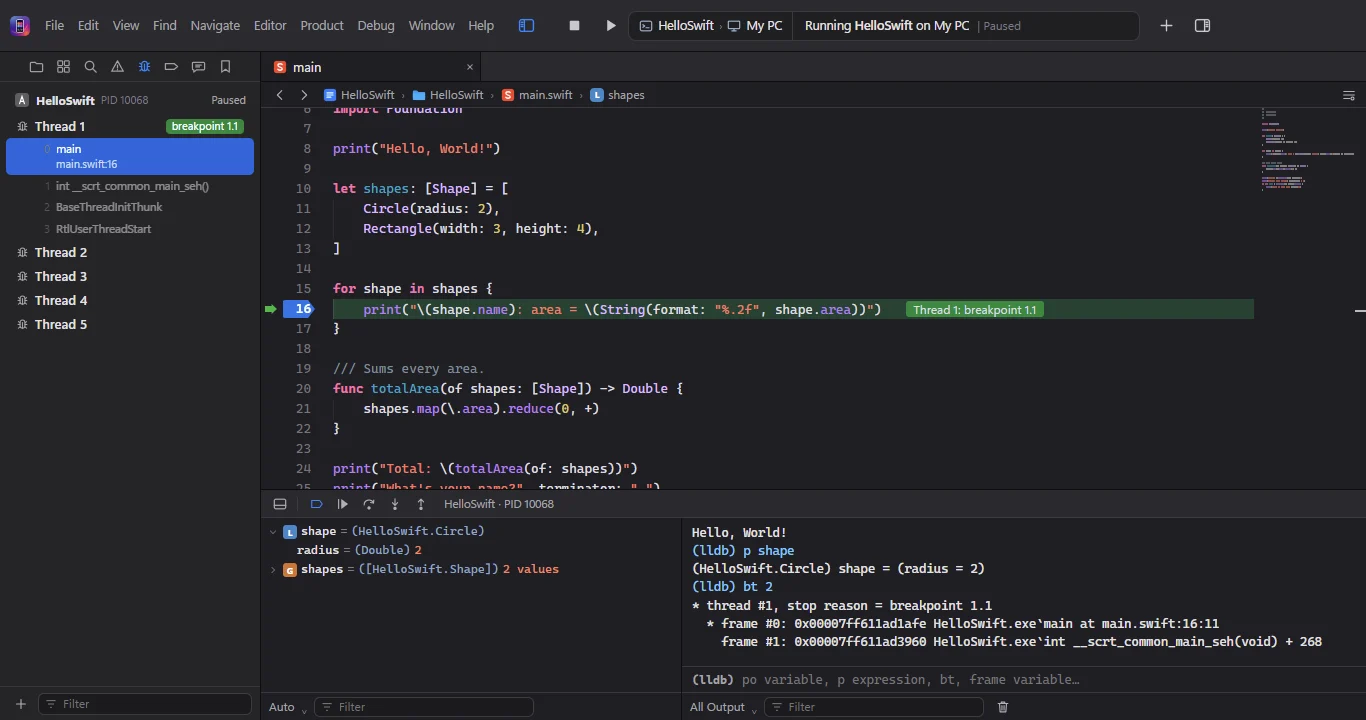
(lldb) console.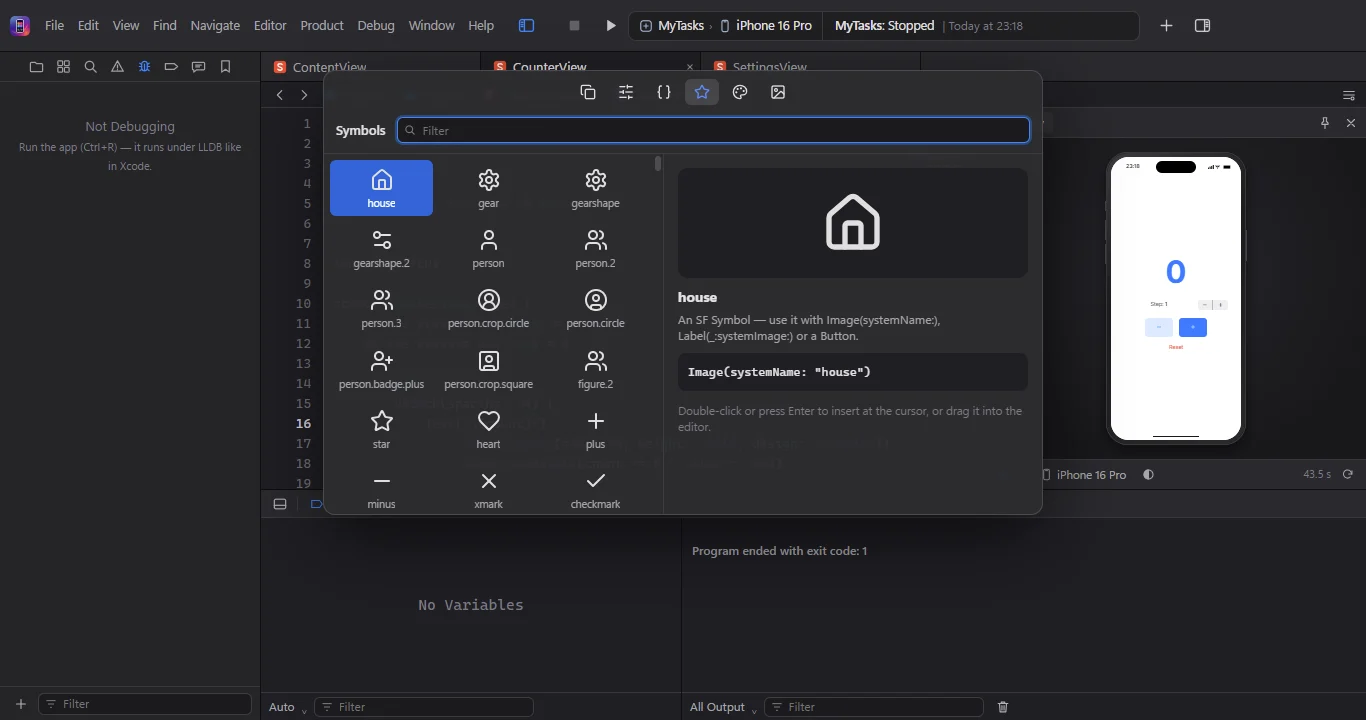
The same language and the same code as on a Mac. Learn Swift on your Windows PC and open the finished project in Xcode later.
import SwiftUI

struct CounterView: View {
    @State private var count = 0

    var body: some View {
        VStack(spacing: 24) {
            Text("\(count)")
                .font(.system(size: 96))
            Button("Add one") { count += 1 }
                .buttonStyle(.borderedProminent)
        }
    }
}

#Preview { CounterView() } // live previewThree steps — no Mac, no developer account, no terminal setup.
Run WinSwift-Studio-Setup.exe and click Next → Install. No administrator rights needed — shortcuts appear on the desktop and in the Start menu.
On first launch click the Install Swift… button — the app installs the Swift toolchain and Visual Studio Build Tools (Windows asks for approval once).
Create New Project → iOS → App and press Ctrl+R. Your app launches in the iPhone simulator (the first run takes 1–2 minutes).
Windows says “Windows protected your PC”? Click “More info” → “Run anyway”. The app is free and not signed with a paid certificate; its source code is public on GitHub.
Honestly: what WinSwift Studio gives you, and what still needs a Mac.
| Feature | WinSwift Studio | Xcode | VS Code + Swift |
|---|---|---|---|
| Operating system | Windows 10 / 11 | macOS only | Windows, macOS, Linux |
| Price | free | free (needs a Mac) | free |
| Swift | yes, Swift 6 | yes | yes |
| SwiftUI | yes (Windows implementation) | yes | no |
| iPhone simulator | built in | official | none |
#Preview canvas | yes | yes | no |
| LLDB debugger | yes | yes | yes |
| Xcode-like UI and shortcuts | yes | — | no |
| Real iPhone, .ipa, App Store | no | yes | no |
| UIKit / Storyboard | no (SwiftUI only) | yes | no |
Swift on Windows, SwiftUI without a Mac, requirements and installation.
Yes — in Swift and SwiftUI. Your code is compiled by the official Swift compiler for Windows, and the app runs in the built-in iPhone simulator thanks to an open implementation of SwiftUI for Windows. It is great for learning, prototyping and iOS programming courses.
Not for writing and testing apps. You only need a Mac with Xcode to build an .ipa file, run the app on a real iPhone or submit it to the App Store — then you open the same SwiftUI code in Xcode.
Yes, completely free and open source under the MIT License. All of the source code is public on GitHub.
Windows 10 or 11 (64-bit), about 1 GB of disk space for the app, plus the Swift toolchain and Visual Studio Build Tools — both install with one click from inside the app (Install Swift…).
No. The Swift compiler for Windows and Electron, which the app is built on, require Windows 10 or later.
No — it is an independent project inspired by Xcode: a similar interface, keyboard shortcuts (Cmd becomes Ctrl) and workflow. It is not affiliated with or endorsed by Apple.
No, it supports SwiftUI — the modern way to build iOS interfaces that Apple recommends for new apps.
Click “More info”, then “Run anyway”. The app is not signed with a paid code-signing certificate; its source code is public on GitHub, so anyone can check what it does.
The app tells you about new versions (Help → Check for Updates…), and a new installer simply installs over the old version. Uninstall it from Settings → Apps → Installed apps → WinSwift Studio. Your projects stay on disk.
The GitHub repository has Issues (bug reports) and Discussions (questions and ideas). Pull requests are welcome.
The project is supported by companies we trust and recommend.

Describe your construction or renovation job and local contractors will come to you with a price. Plumbers, electricians, roofers and 60 more services — free (Poland).
Visit ProZlecenie.pl
A cybersecurity portal: news, analysis and practical guides about online threats — learn how to spot scams and protect your data (in Polish).
Visit CyberScope.pl
Free, open source and ready in minutes. All you need is a Windows PC.